Appearance
Table Manager
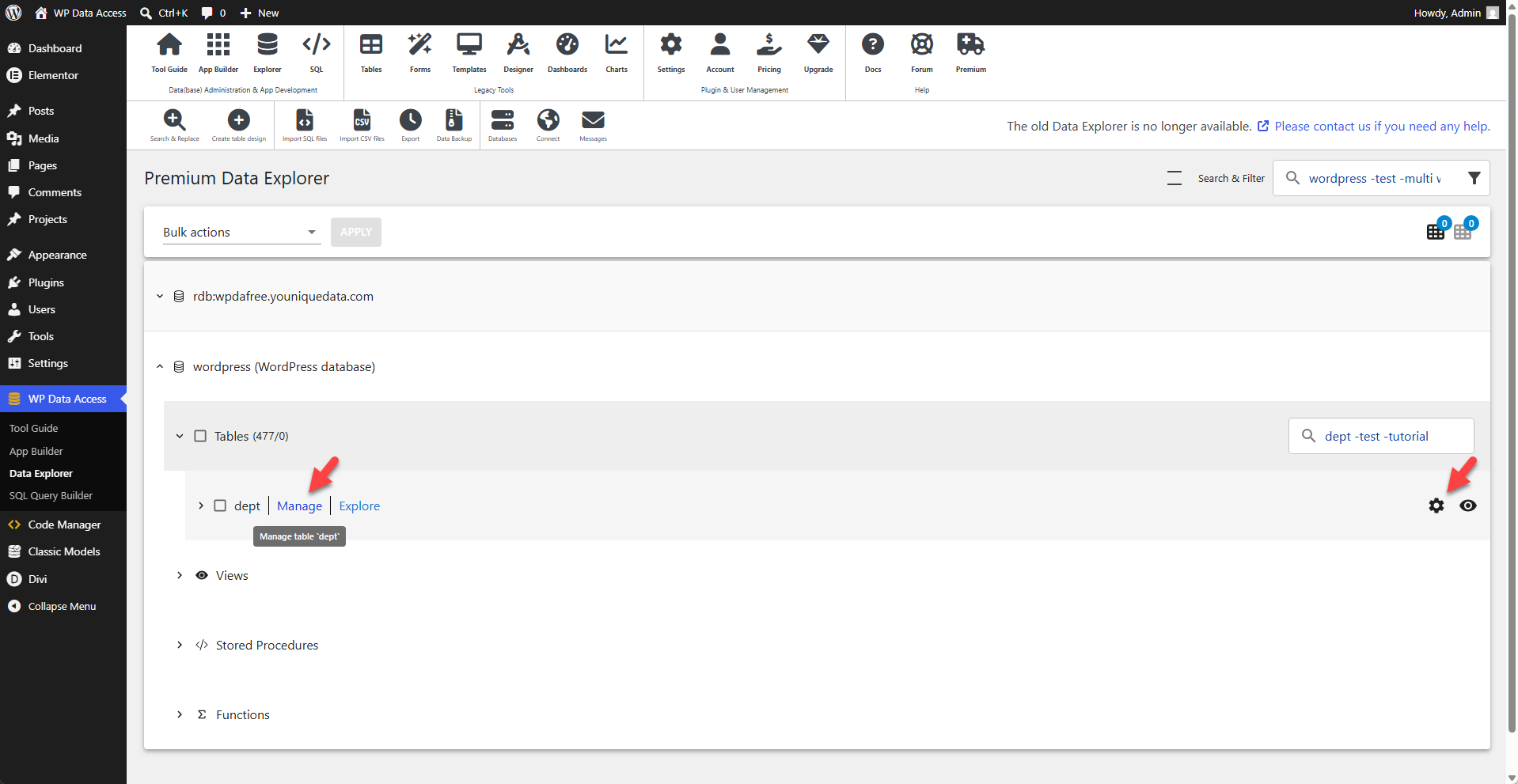
Click the Manage link or icon to open the Table Manager for a specific table or view.
Actions Menu
The actions menu is displayed by default. The available action buttons depend on the selected database object type (table or view).
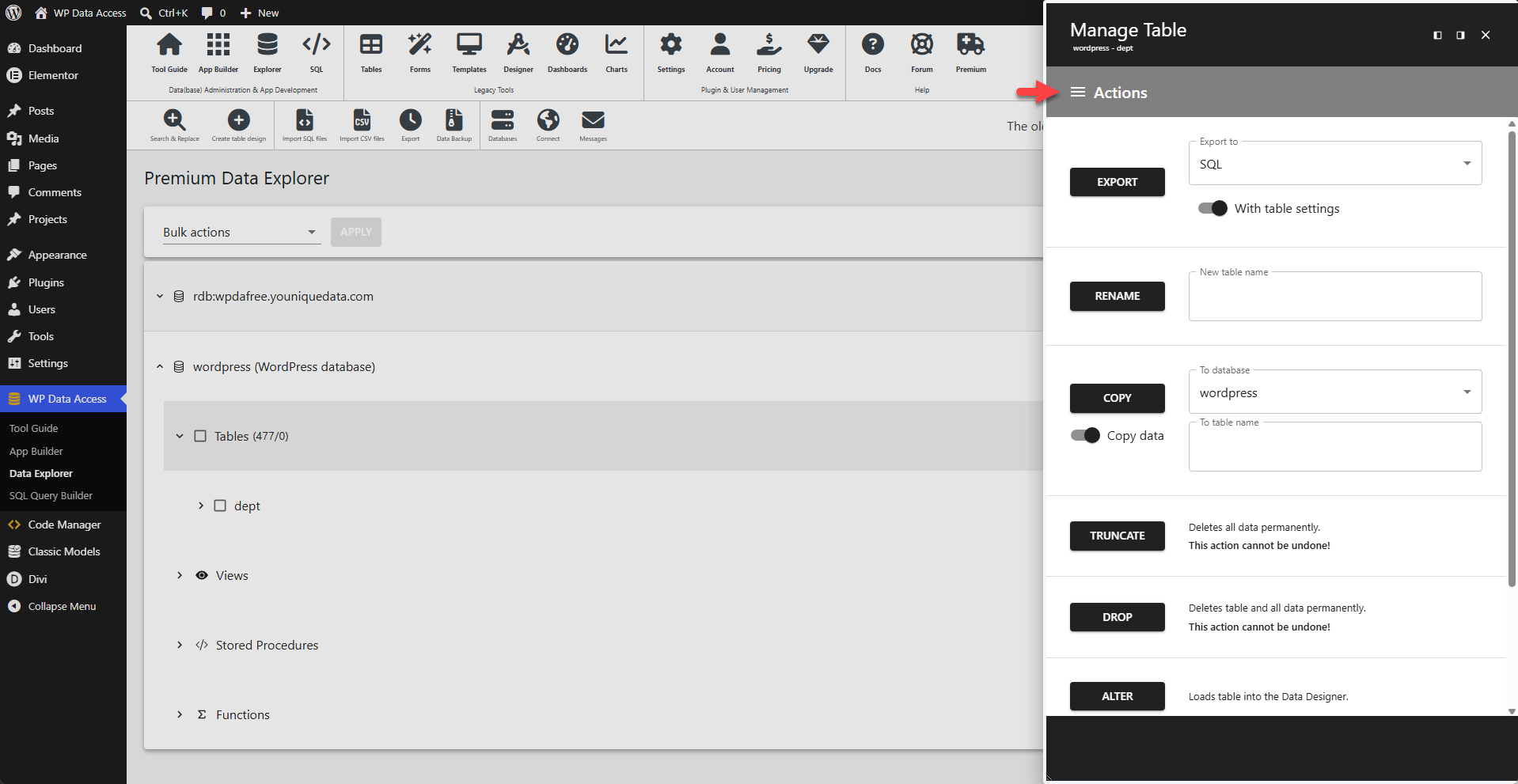
EXPORT
Exports the selected table. Supported formats:
- SQL
- CSV
- JSON
- Excel
- XML
📌 Also available as a batch feature.
📌 SQL export files include a CREATE TABLE statement. 📌 Not available for views.
RENAME
Renames the selected table or view.
📌 Renaming WordPress tables is not supported.
COPY
Copies the selected table structure, with or without data. Supports copying tables to other databases.
📌 Not available for views.
TRUNCATE
Truncates the selected table.
📌 Also available as a batch feature.
📌 Does not truncate WordPress tables.
📌 Not available for views.
DROP
Drops the selected table or view.
📌 Also available as a batch feature.
📌 Does not drop WordPress tables.
ALTER
Opens the Data Designer for the selected table.
📌 Not available for views.
> Find the Data Designer documentation here...
SQL
Displays the CREATE TABLE or CREATE VIEW statement for the selected table or view. Pressing the SQL button copies the statement to your clipboard.
NOTES
- WordPress tables are protected by default. It is not possible to drop, truncate, or rename WordPress tables.
- Export to SQL supports seamless export and import between WordPress databases that use different table prefixes. During export, the WordPress table prefix is replaced with the variable
{wp_prefix}, which is automatically replaced by the correct prefix upon import.
Settings Menu
The settings menu allows administrators to:
- Manage Table Settings
- Manage Column Settings
- Manage the REST API
- Reset table and form builder settings
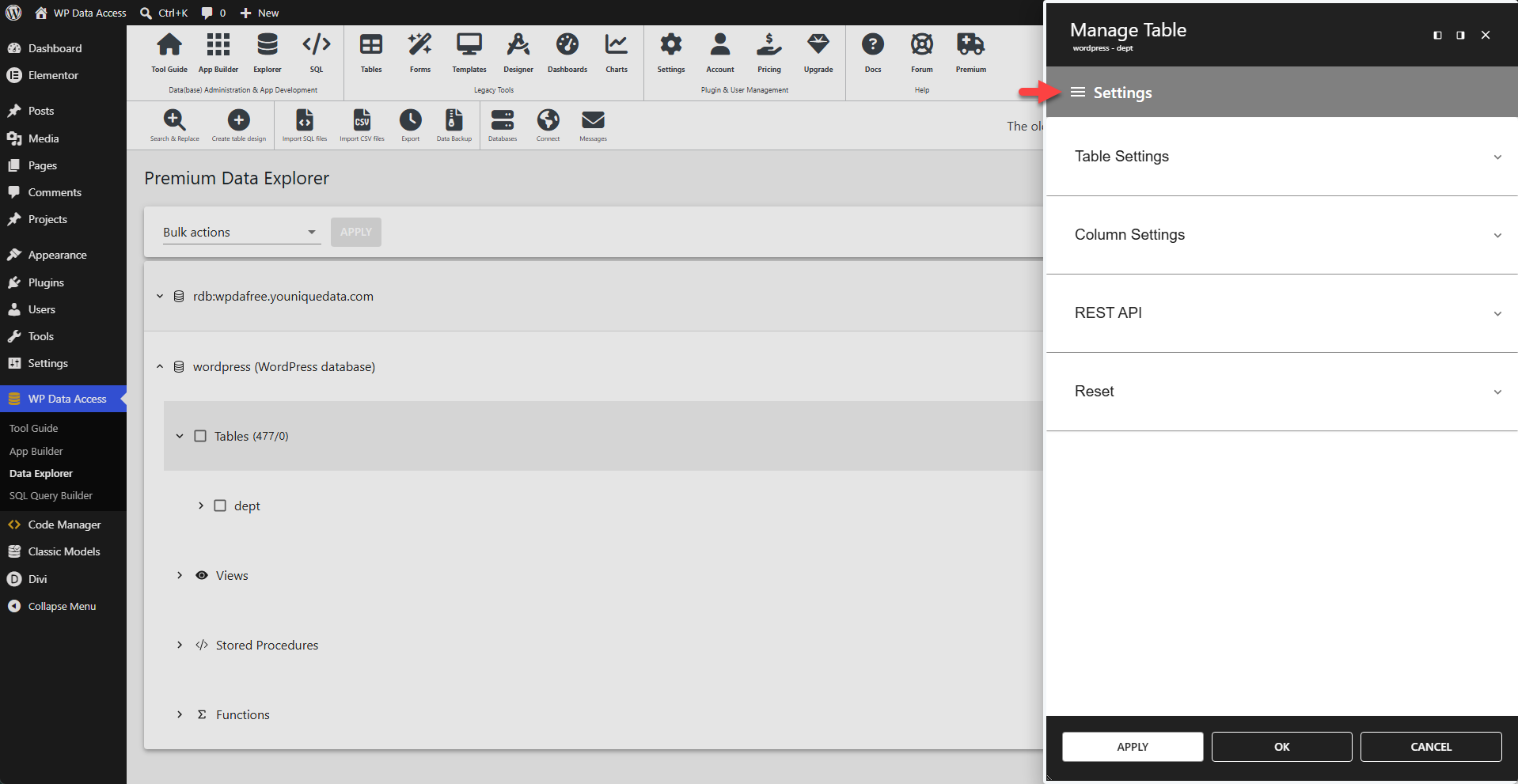
Table Settings
Table Settings is a powerful feature that adds a configuration layer around a table or view. These settings are available in the App Builder and Data Explorer and are used by default. All settings can be overridden in the Table and Form Builder.
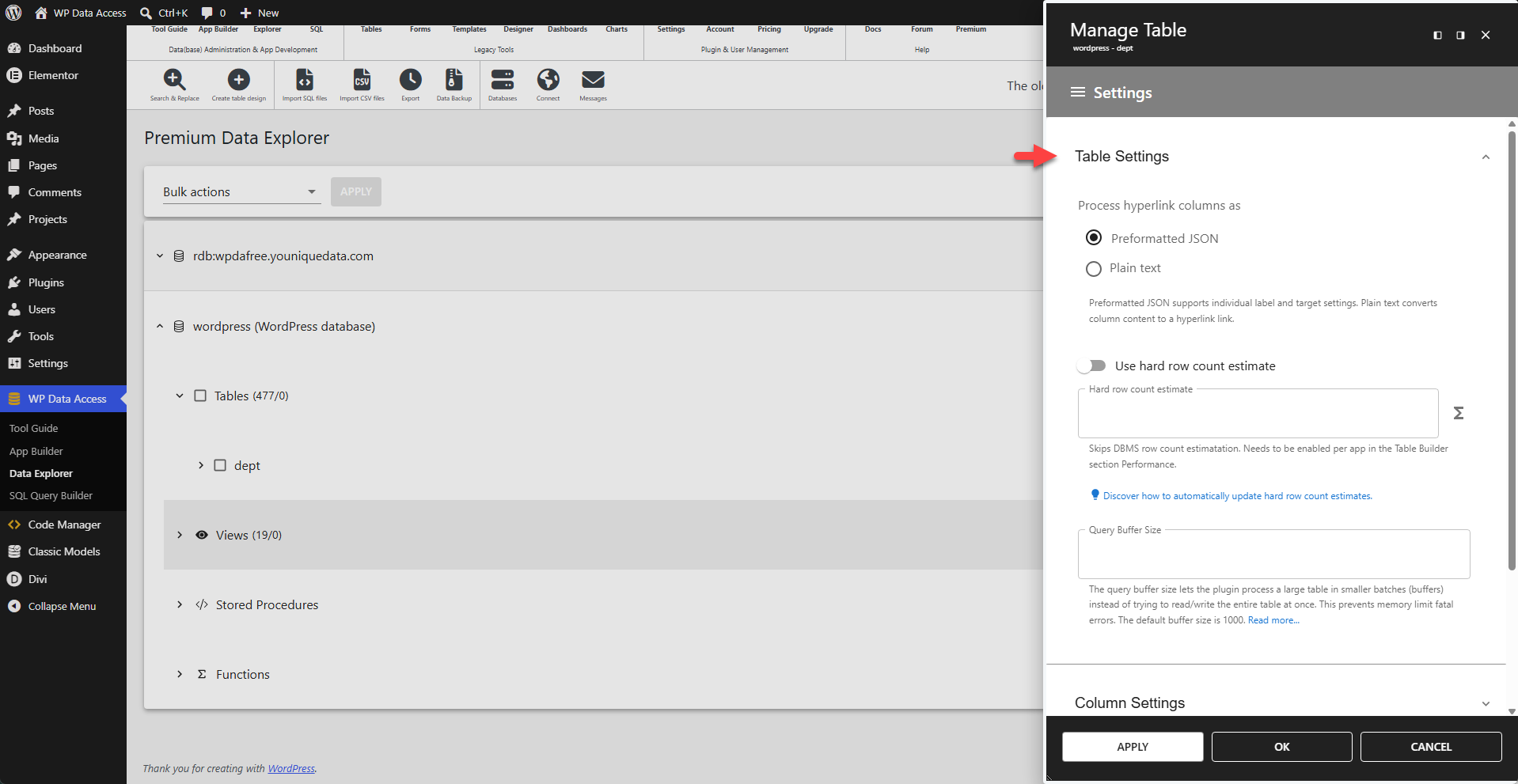
⚙️ Process hyperlink column as
This setting determines how hyperlink columns are handled. Preformatted JSON supports individual label and target settings. Plain text converts column content into a hyperlink.
📌 This setting applies to all hyperlink columns in the selected table.
The Table Builder and Form Builder allow you to override this setting on a per-column basis, enabling a mix of hyperlink column types. In the Table or Form Builder:
- Select Media Column in the Column Settings section.
- Select HyperlinkObject to support individual label and target settings.
- Select HyperlinkUrl for plain URL storage.
⚙️ Use hard row count estimate
This setting skips DBMS row count estimation and can provide a significant performance boost. This feature is primarily intended for very large tables containing millions of rows.
📌 IMPORTANT - This must be enabled per app in the Table Builder's Performance section.
⚙️ Hard row count estimate
This value is stored in a single central location to prevent multiple row counts from being stored for the same table.
📌 Learn how to update this value at regular intervals...
⚙️ Query Buffer Size
The query buffer size allows the plugin to process large tables in smaller batches (buffers) rather than attempting to read or write the entire table at once. This helps prevent memory limit fatal errors. The default buffer size is 1000.
If you encounter a memory exhausted error when copying a large table, try decreasing the query buffer size for that table.
- Higher value → fewer chunks, but more memory usage → higher risk of fatal errors.
- Lower value → less memory per chunk, safer, but slower execution.
- No universal value – the optimal setting depends on row size (how much data each row stores).
Column Settings
Column Settings, like Table Settings, is a powerful feature that adds a configuration layer around a table or view. These settings are also available in the App Builder and Data Explorer and are used by default. Column Settings can be overridden in the Table and Form Builder.
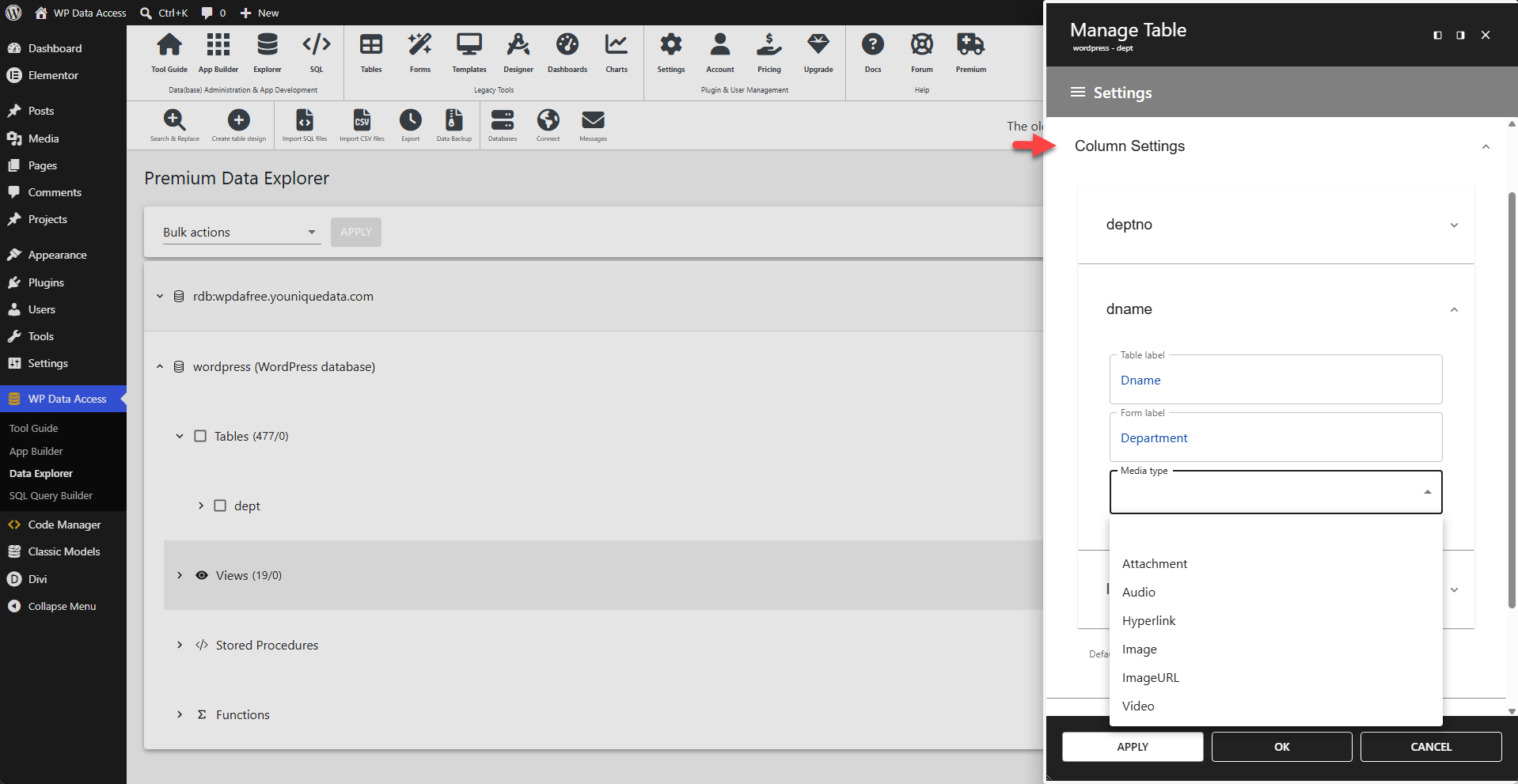
If you change the column labels (Table Label and Form Label) for a specific table, these labels are automatically used in the Table and Form Builder. This allows you to manage table and view settings from a single central location. However, you can override them for specific apps, tables, and views as needed.
⚙️ Media Type
Use this setting to define the default media type for a column. Note that the hyperlink media type uses the process hyperlink column as setting described above. This can be overridden in the Table Builder and Form Builder column settings.
REST API
The REST API was originally designed to support plugin features but can also be leveraged by external applications. It allows external apps to connect to all local and remote databases registered in WP Data Access.
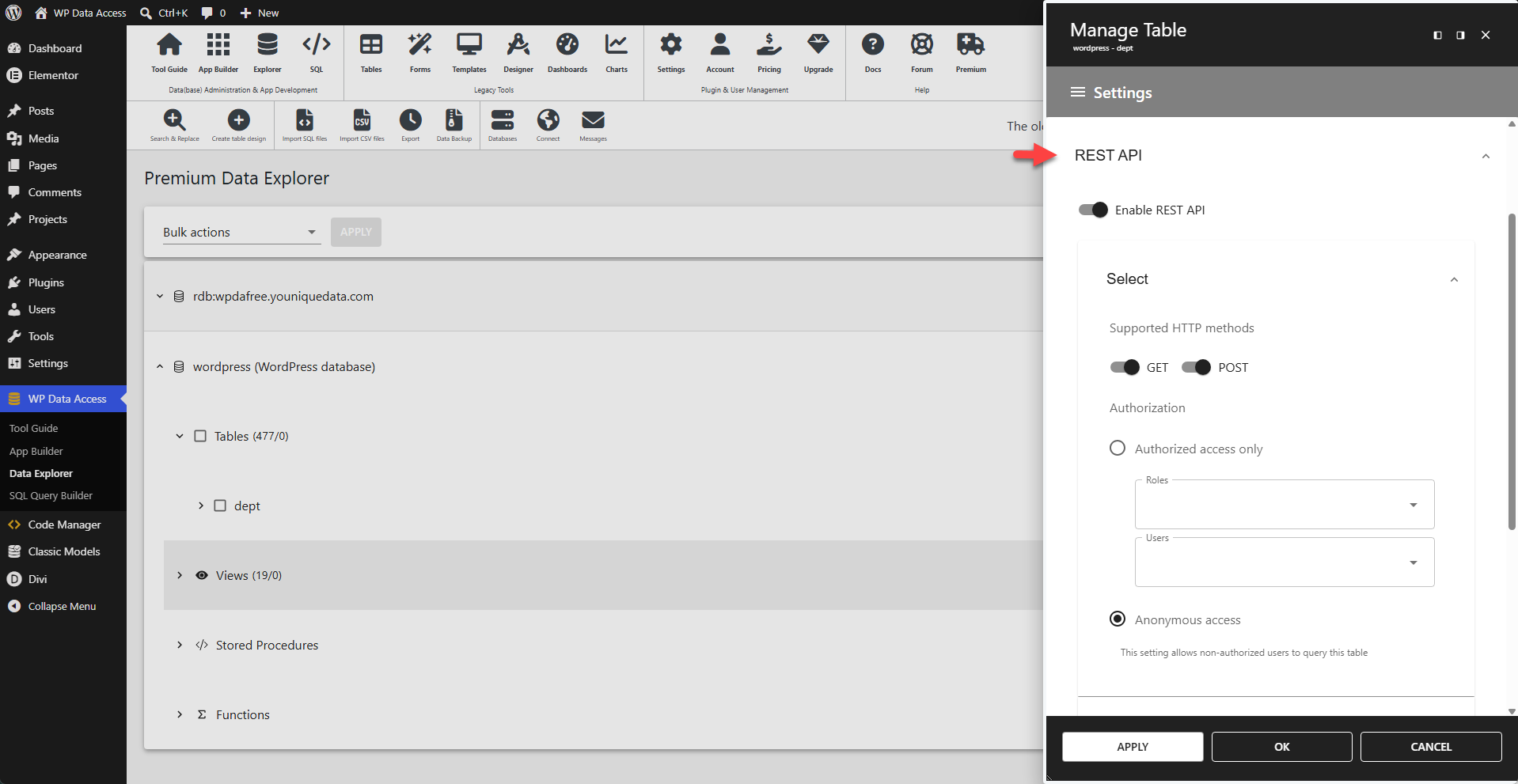
The REST API must be enabled per table explicitly. It supports:
- SELECT
- INSERT
- UPDATE
- DELETE
Each endpoint is disabled by default and must be configured explicitly:
- Supported HTTP methods – GET and POST
- Authorization – based on WordPress user and role principles
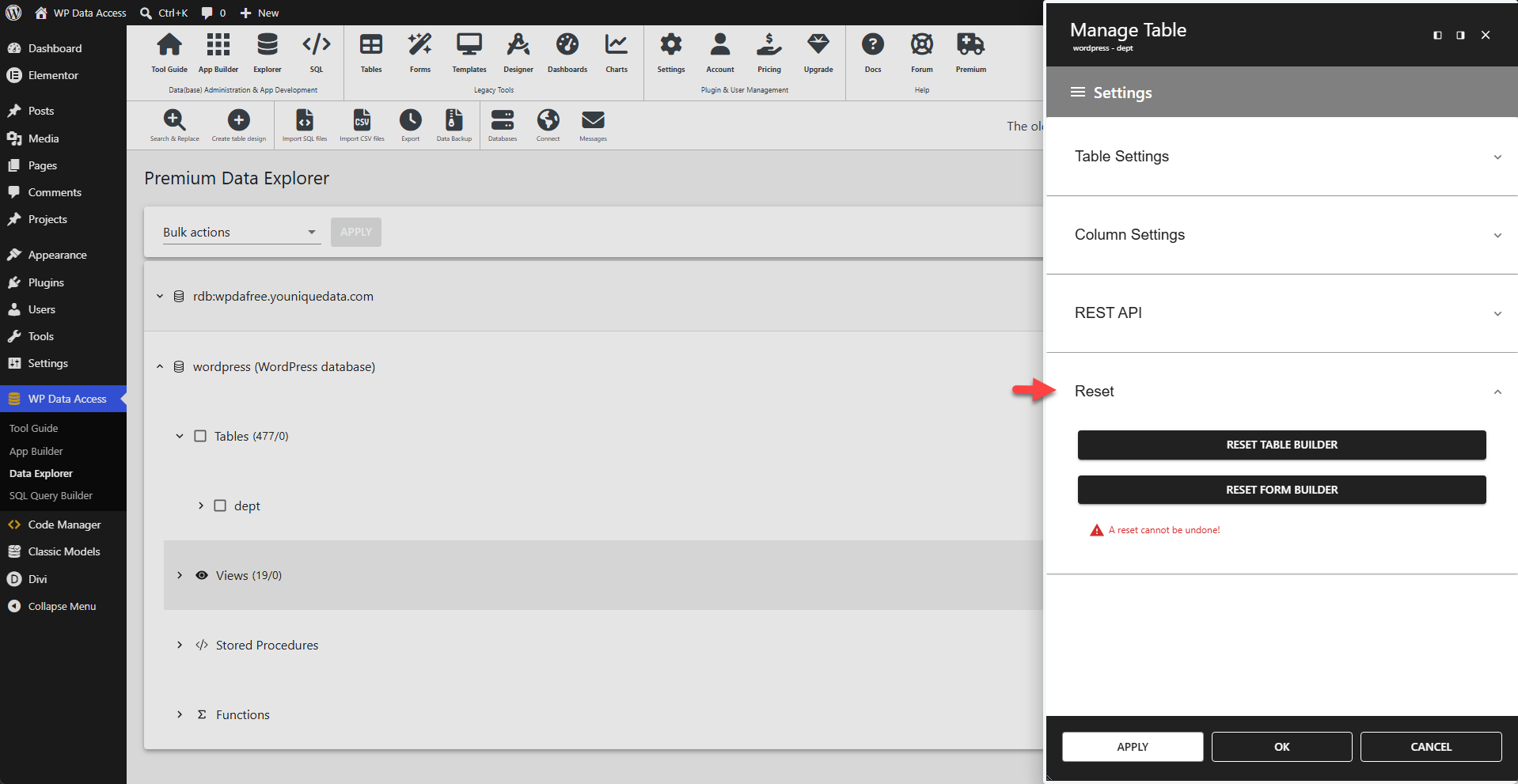
Reset
The Data Explorer allows administrators to customize table and form settings to improve the individual user experience. Resetting these settings restores the table and form layout to their default state.