
Appearance
Data Backup
Schedule data backups at specific intervals.
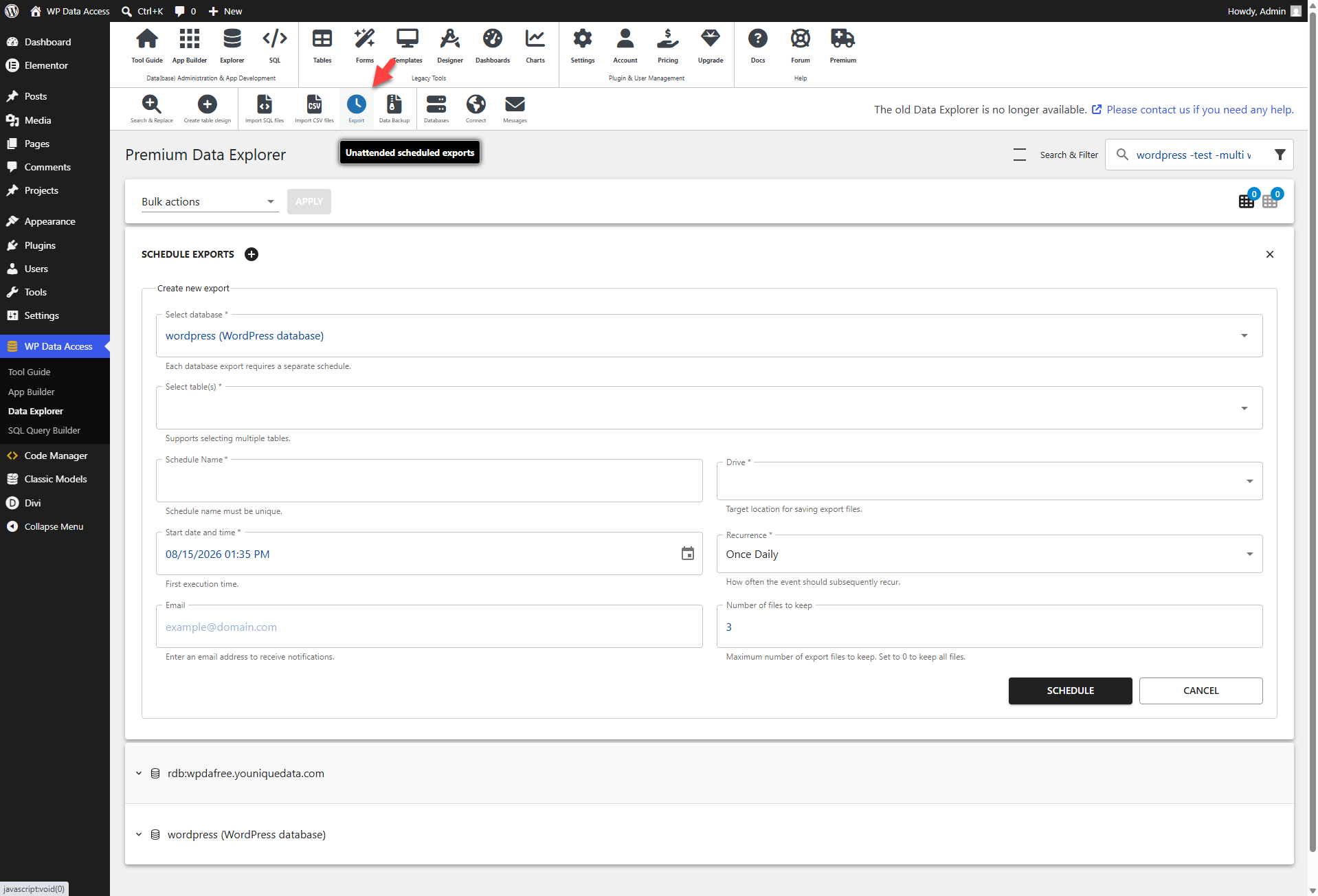
📌 This feature has been replaced by the Unattended Scheduled Export feature and will be removed in version 6.
Backup
- Select the tables you want to back up.
- Define a unique backup ID.
- Choose your backup location (local folder or Dropbox).
- Set a backup interval or select Run once.
- Specify the number of backup files you wish to keep.
Restore
Use the Import SQL Files feature to restore your backup files.
Notes
- You need to define and activate at least one storage device (read more...).
- To write backup files to Dropbox, you must first grant access to the WP Data Access Dropbox app (which does not yet have production status).
- Exported SQL files can be imported into a WordPress database with a different table prefix. During export, the WordPress table prefix is replaced with the variable
{wp_prefix}, which is automatically replaced by the correct prefix upon import.